
User Profile is for user’s face/finger/password/privilege.
After logging in to the system, you will be directed to the main dashboard.
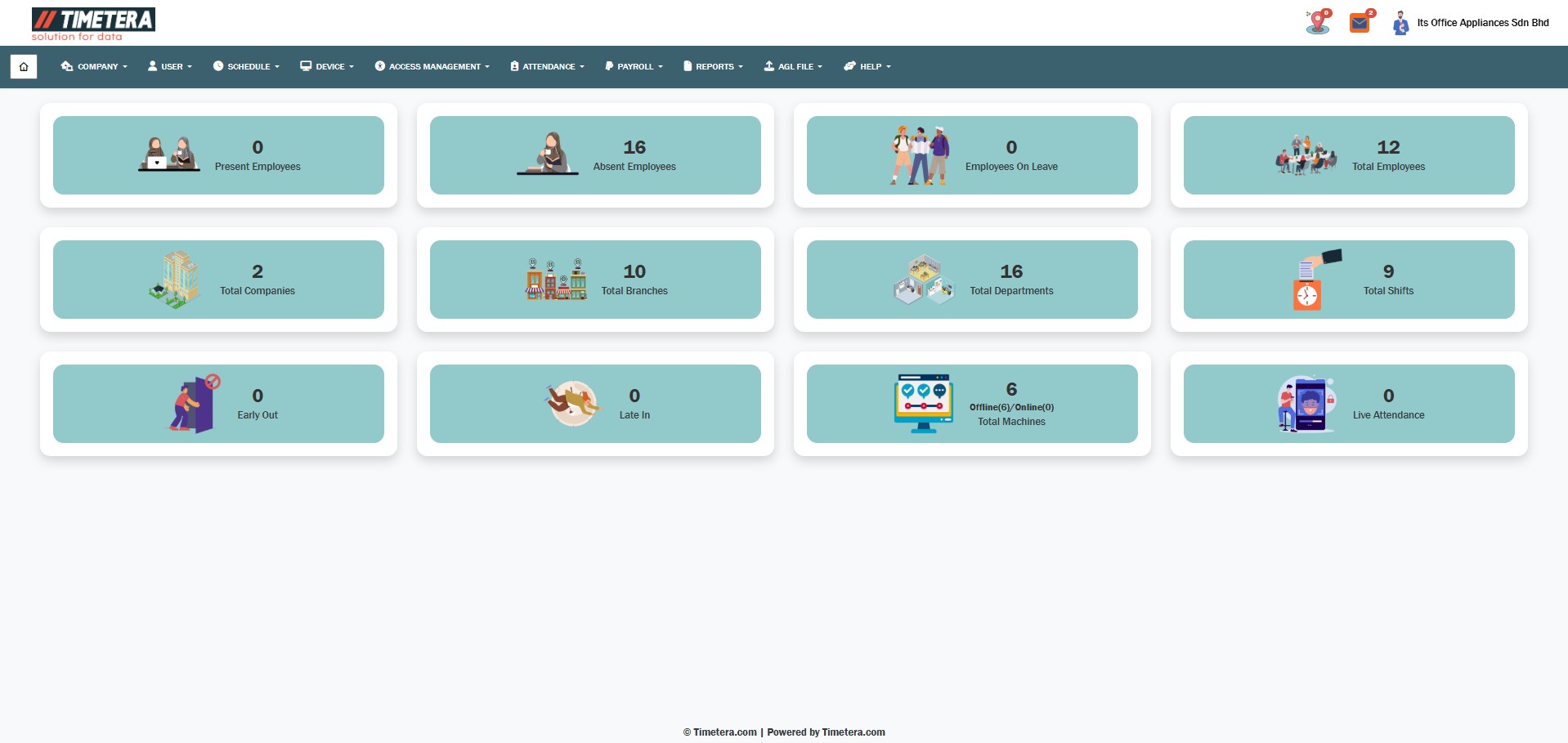
To begin transferring users credentials to a device, follow these steps carefully.
Step 1: Navigate to the Device Management Section
Go to the top menu and click:
Device > Device Management > Device Management
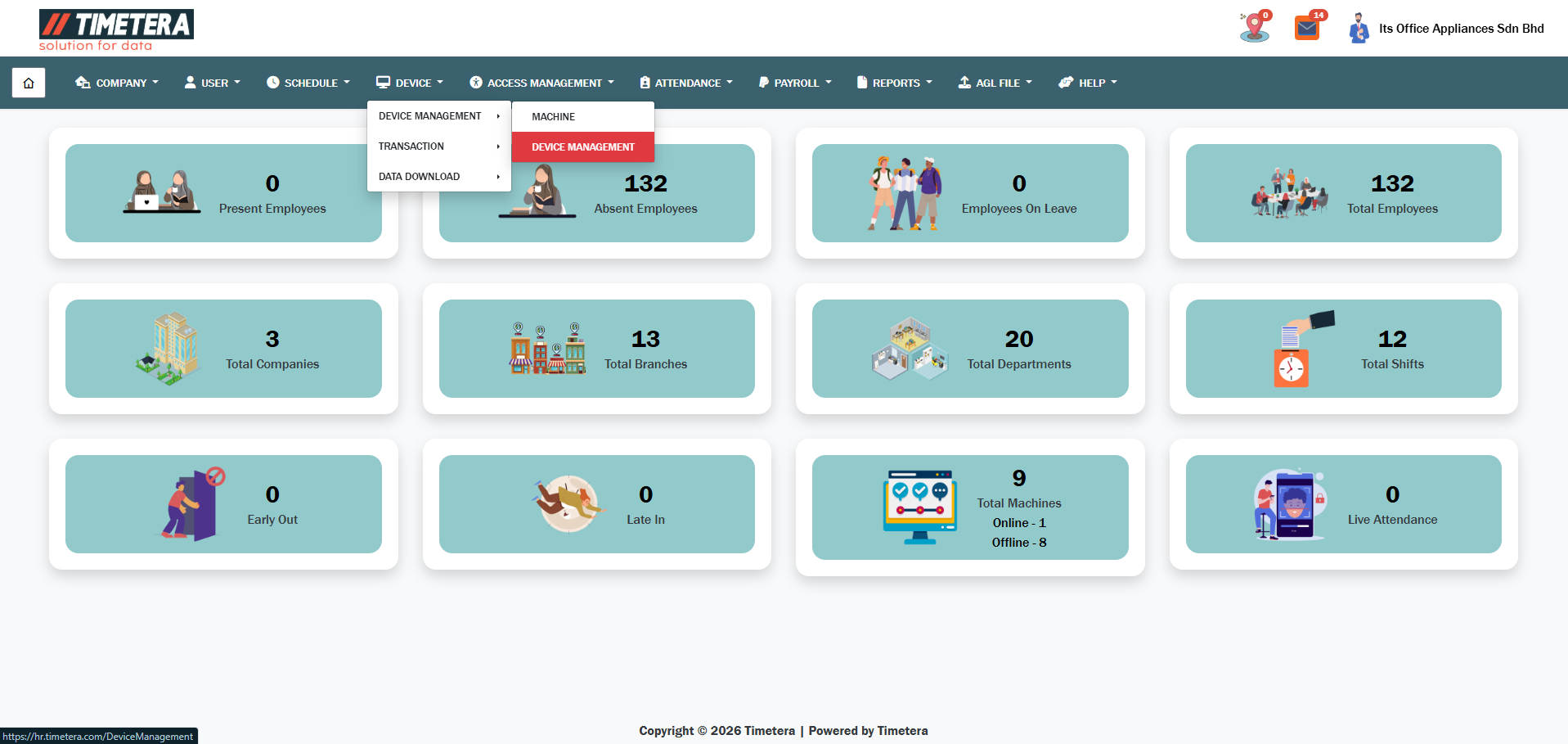
This section allows you to manage user data across different devices.
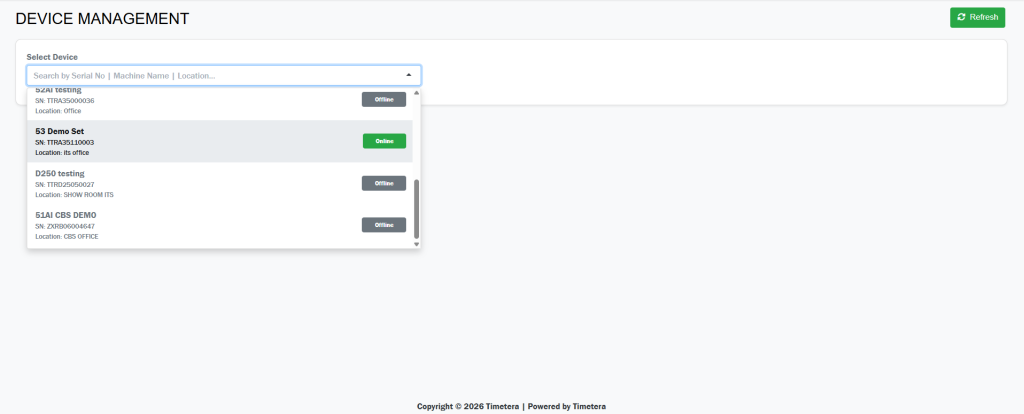
Step 2: Select the Target Device
From the dropdown list, choose the device you want to download the user(s) from.
Make sure you select the correct device, as this is where the user information will be download.
Step 3: Download Users
After choose the selected device.
This will display a list of all users that are currently stored in the device database.
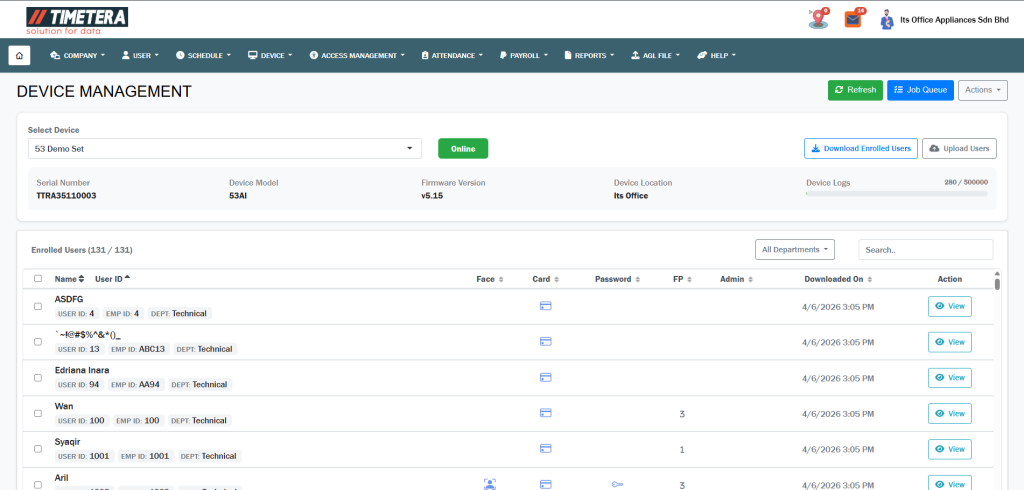
Step 4: Download
After pressing “Download Enrolled Users”, you can check the job status in the box on the right side.
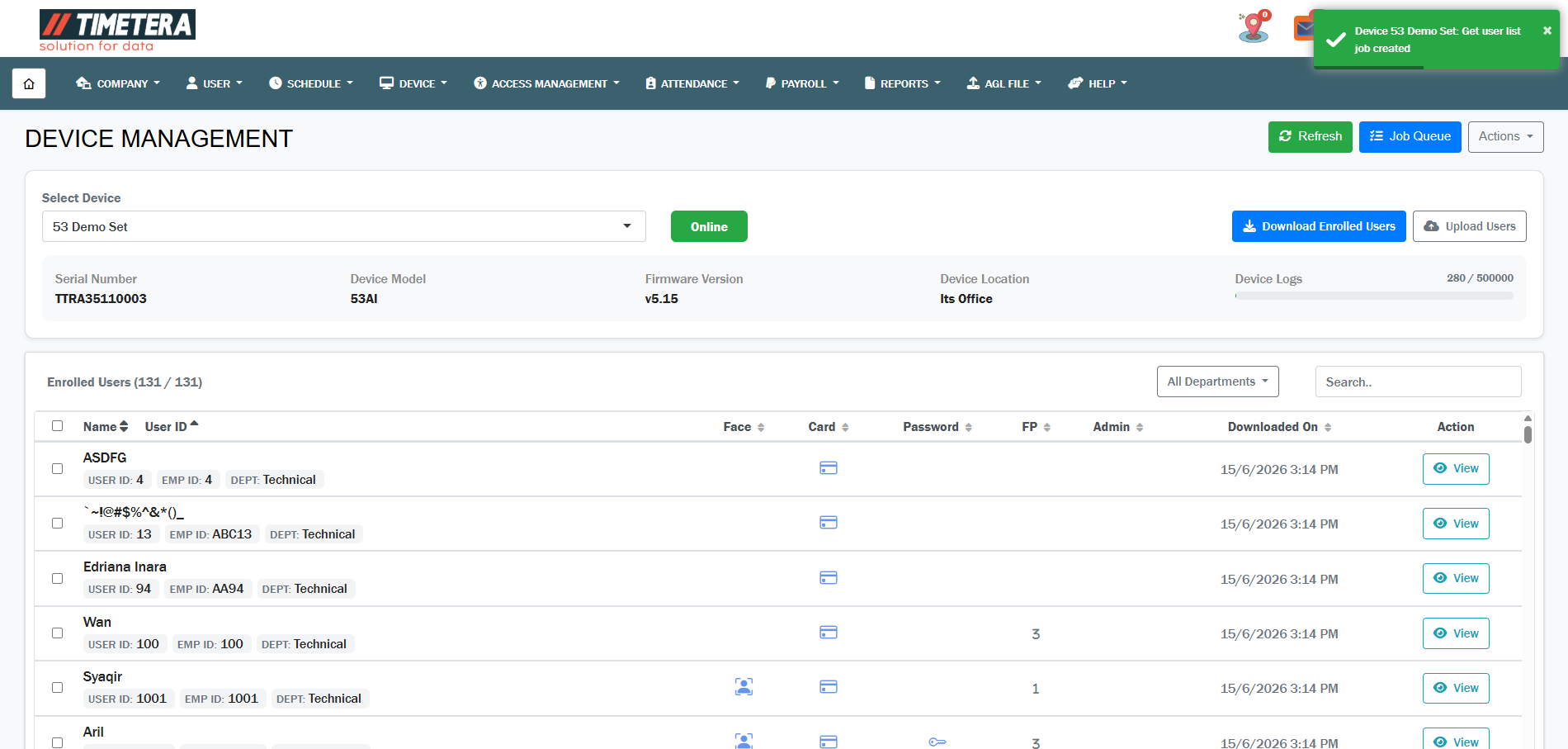
The system will now begin transferring the user data to the selected device.
Step 5: Confirm Successful Download
When the download is complete, the status will be shown in the box on the right side, confirming that the users were successfully added to the device.
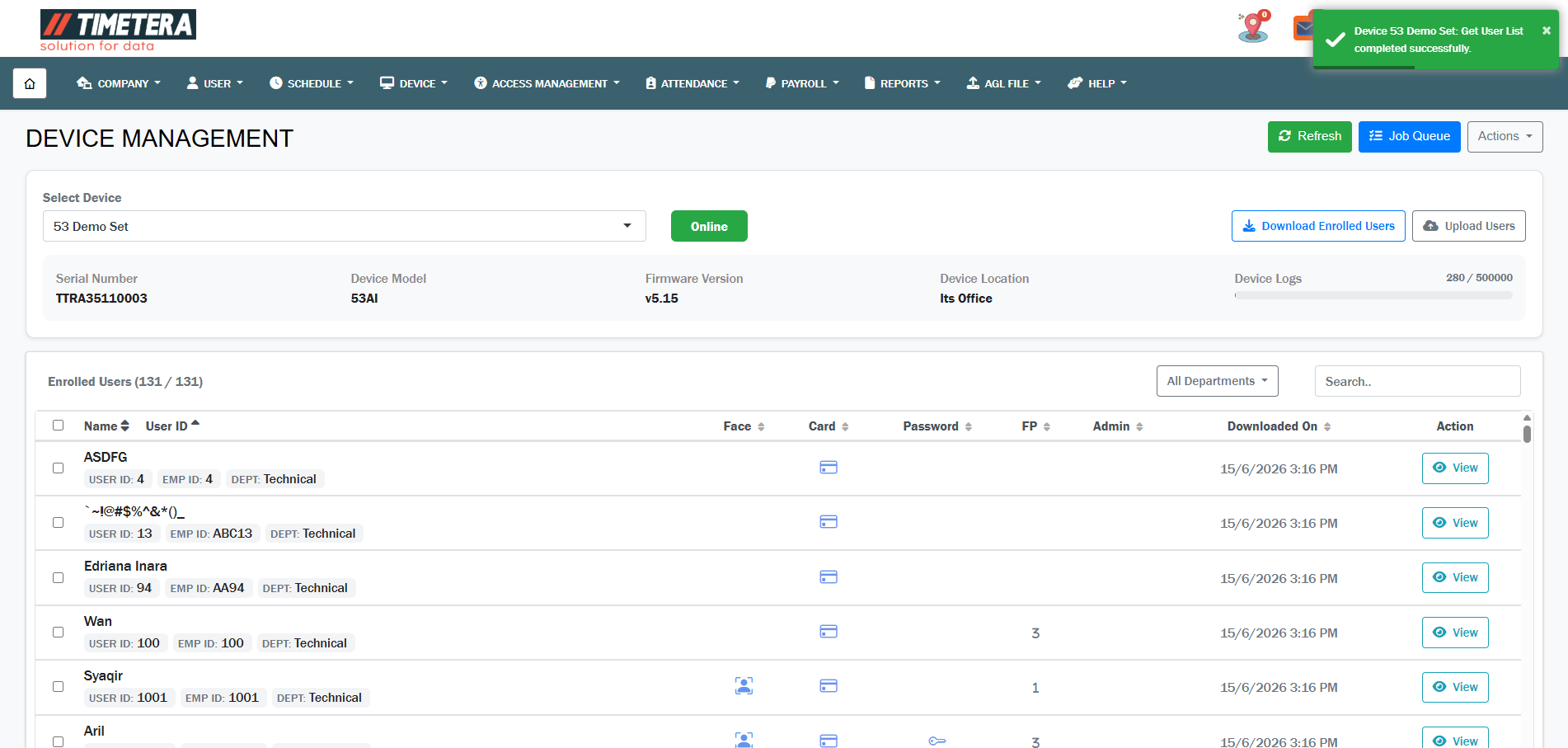
If you do not see a confirmation, please check your internet connection or try the process again.