
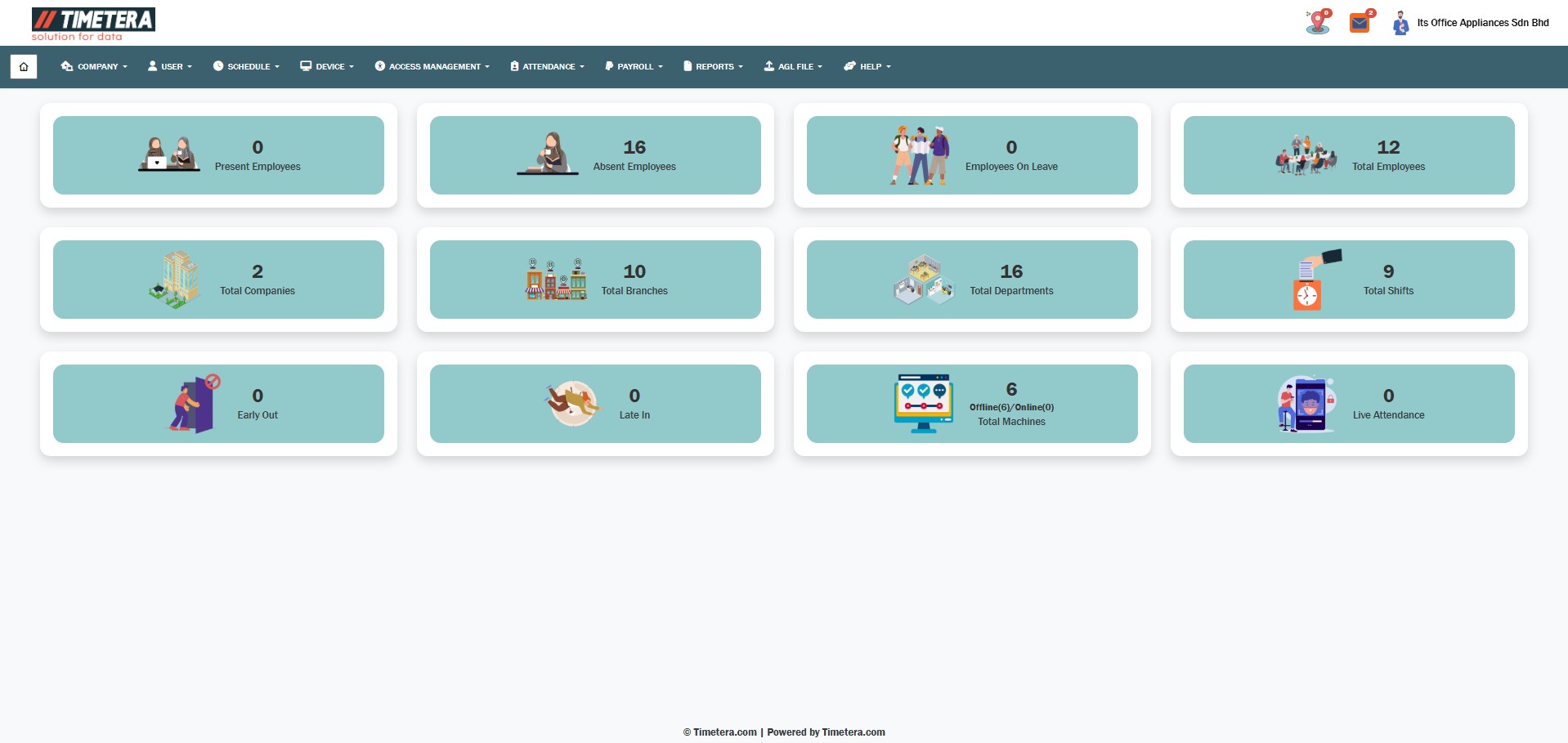
After logging in to the system, you will be directed to the main dashboard.
To begin transferring users to a device, follow these steps carefully:
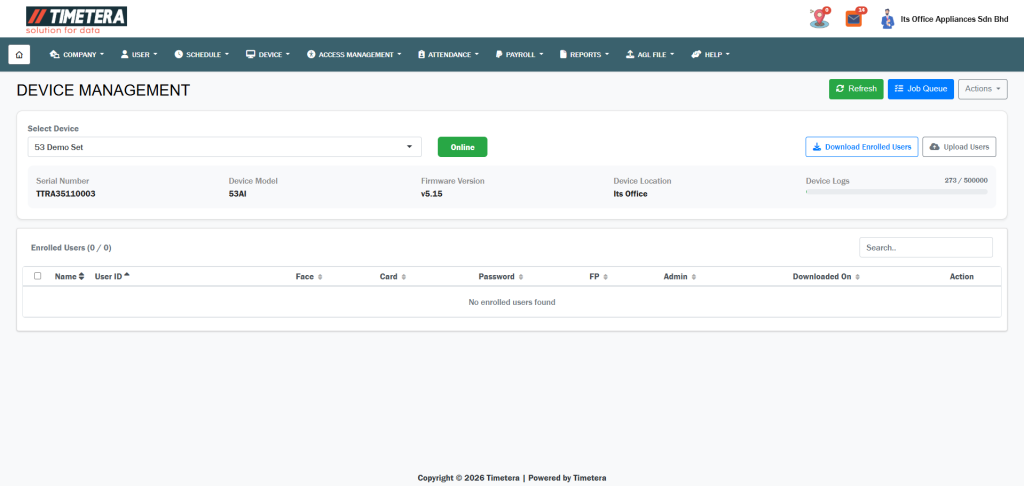
Step 1: Navigate to the Device Management Section
Go to the top menu and click:
Device > Device Management > Device Management
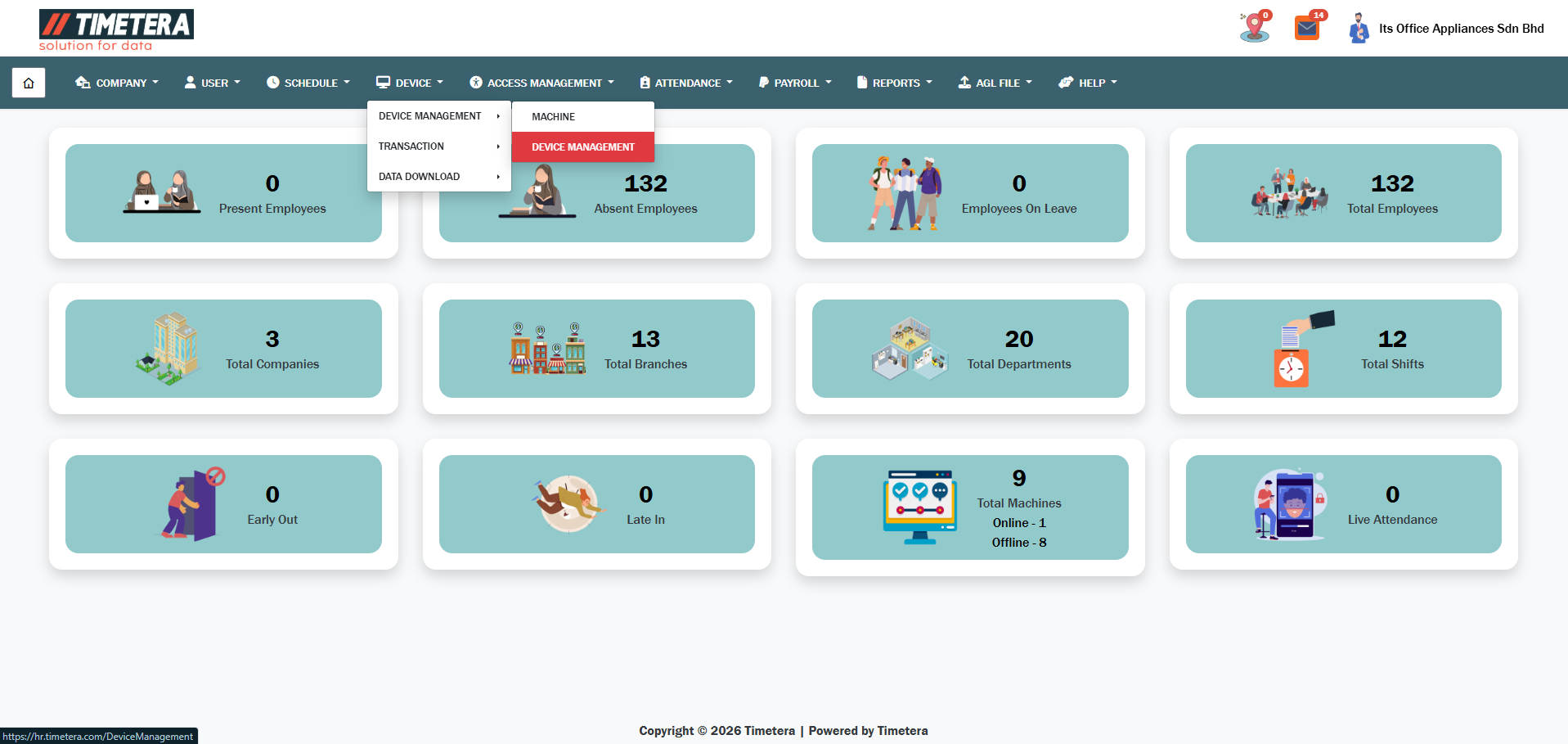
This section allows you to manage user data across different devices.
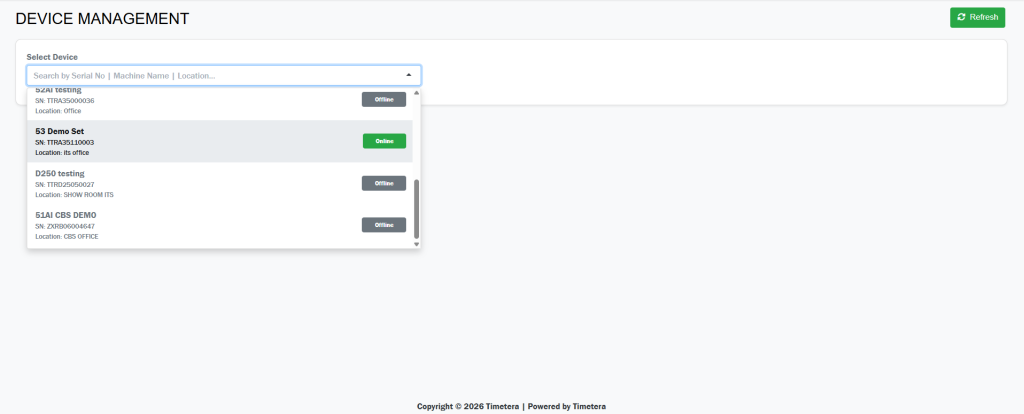
Step 2: Select the Target Device
From the dropdown list, choose the device you want to transfer the user(s) to.
Make sure you select the correct device, as this is where the user information will be sent.
Step 3: Upload Users
Click the “Upload Users” button.
This will display a list of all users that are currently stored in the system’s database.
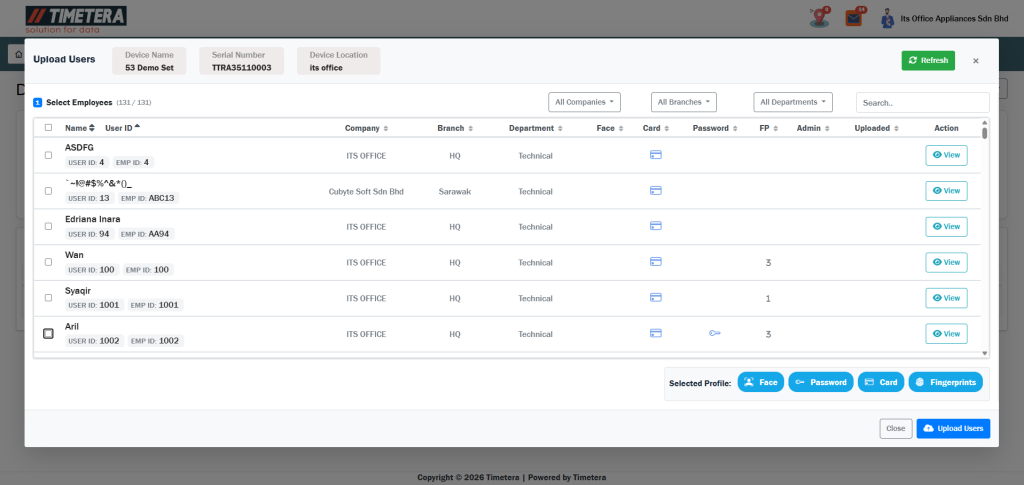
Step 4: Select the Users to Transfer
From the displayed list, select the users you want to transfer.
You can select multiple user by tick the checkbox and press Upload Users.
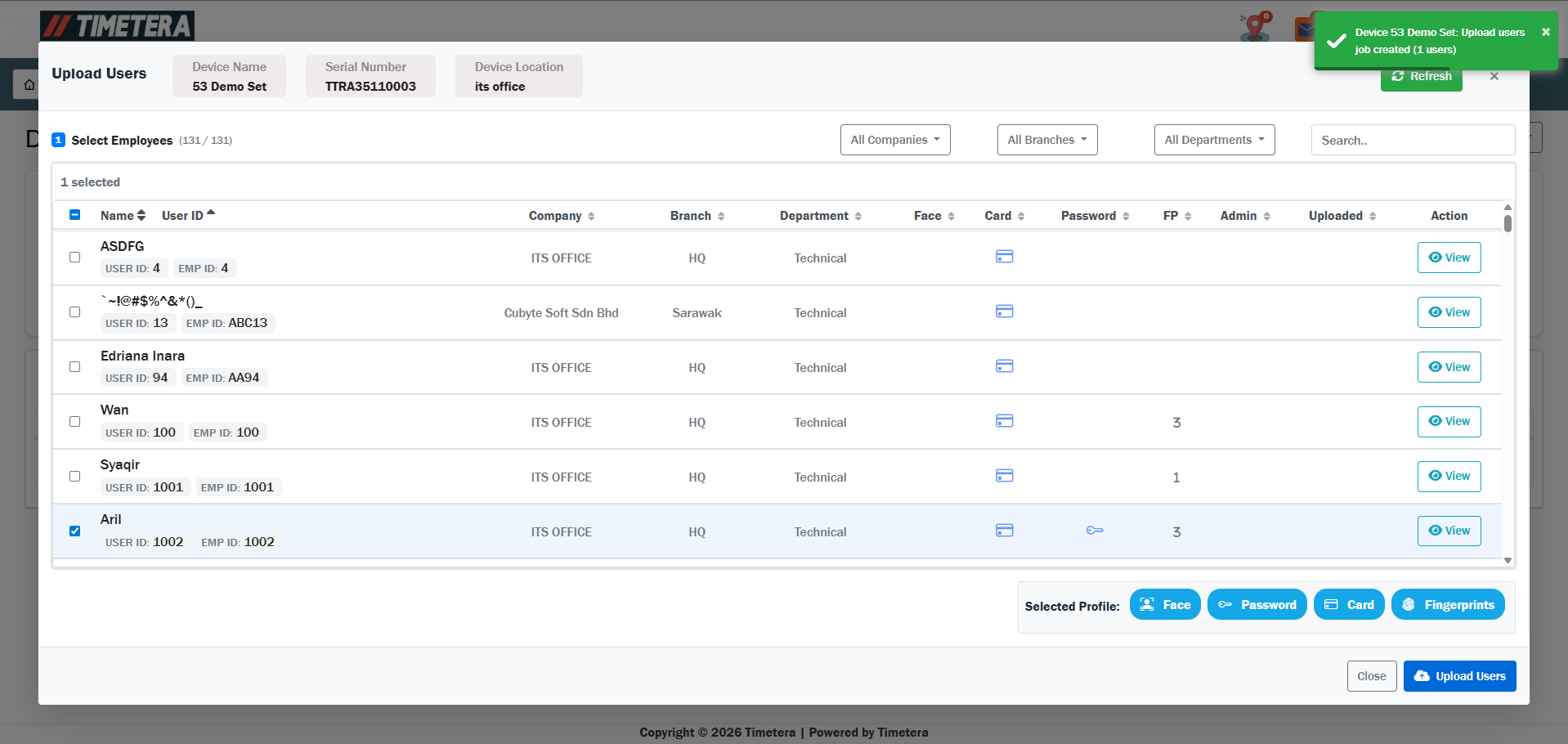
Step 5: Job Status box
After pressing “Upload Users”, you can check the job status in the box on the right side.
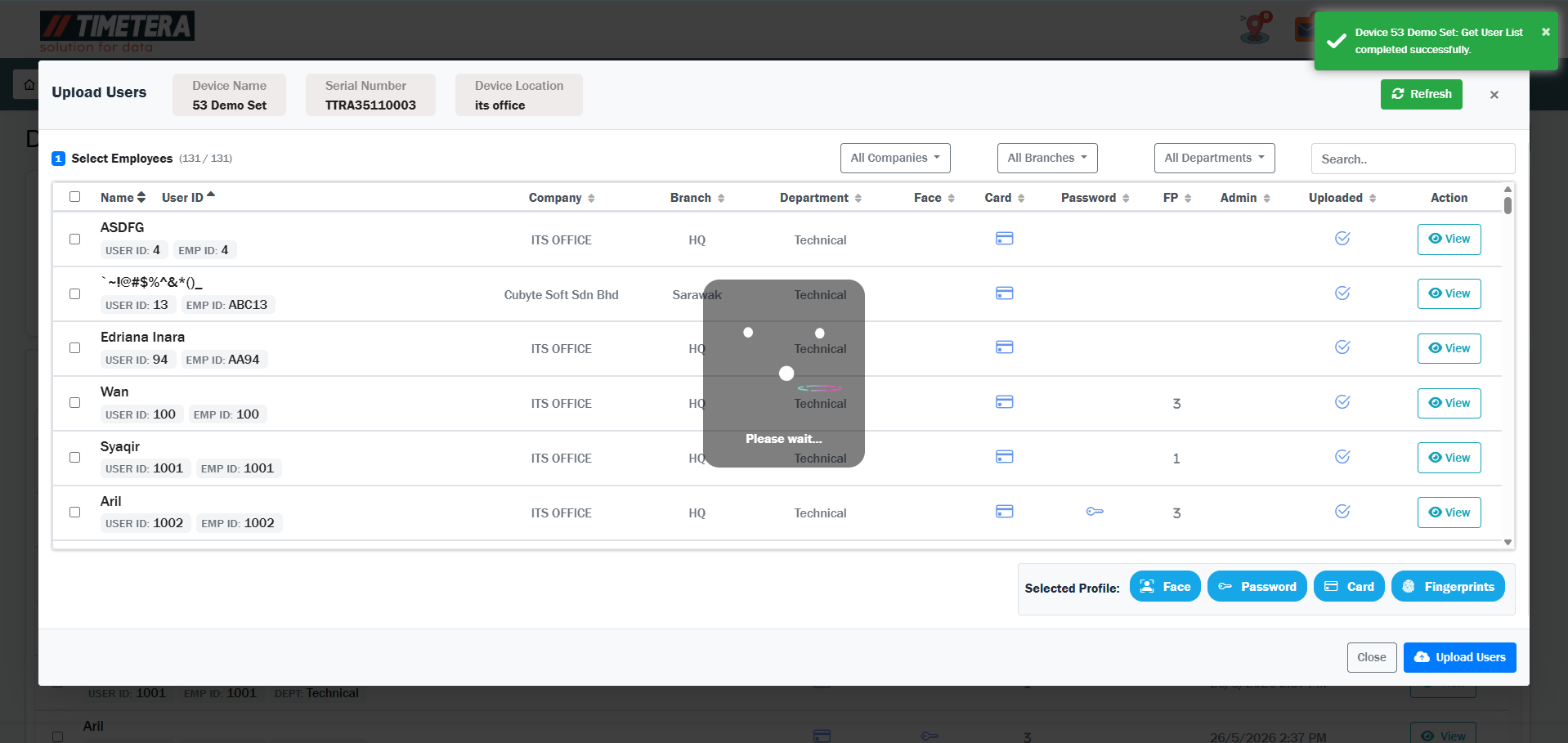
The system will now begin transferring the user data to the selected device.
Please wait patiently until the loading process completes. Do not refresh or close the page during this step.
Step 6: Confirm Successful Transfer
When the transfer is complete, the status will be shown in the box on the right side, confirming that the users were successfully added to the device.
If you do not see a confirmation, please check your internet connection or try the process again.
Final Step: Register User Details on the Device
Once the users are transferred, go to the physical device to complete the registration process.
At the device, you can now register additional user authentication methods such as:
- Face recognition
- Fingerprint scan
- Password
- Card access
These details must be enrolled directly on the machine for full functionality.